
How to Make a Website in WordPress: A Complete Step-by-Step Guide
If you’ve ever dreamed of having your own website — whether it’s for a blog, portfolio, business, or online store — you’re in the right place. Thanks to WordPress, creating a website has never been easier. You don’t need to be a tech expert or a coder to make a professional-looking site.
In this guide, we’ll walk through everything you need to know about creating a website in WordPress, from setting up hosting to designing your pages and going live. Let’s dive in!
What Is WordPress?
Before we start, let’s understand what WordPress actually is.
WordPress is a Content Management System (CMS) — a platform that allows you to create, design, and manage websites easily. It’s open-source, meaning it’s free and supported by a huge global community of developers and designers.
There are two versions of WordPress:
- WordPress.com – A hosted platform that takes care of everything for you but offers limited customization.
- WordPress.org – The self-hosted version that gives you full control over your website’s design and features.
In this guide, we’ll focus on WordPress.org, since it’s the best choice if you want to build a professional, customizable website.
Step 1: Choose a Domain Name and Hosting
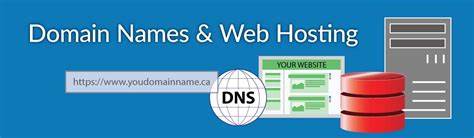
Every website needs two things:
- A domain name – your website’s address (e.g.,
www.yourname.com) - A web hosting service – a server that stores your website files and makes them accessible online
Choosing a Domain Name
Your domain name should:
- Reflect your brand or purpose
- Be short and easy to remember
- Avoid numbers or special characters
- Use popular extensions like
.com,.net, or.org
For example, if you’re starting a fashion blog, you might go for www.stylewithme.com.
Selecting a Hosting Provider
Next, you’ll need a web hosting provider. Popular choices include:
- Bluehost (officially recommended by WordPress)
- Hostinger
- SiteGround
- GoDaddy
Most of these providers offer one-click WordPress installation and free SSL certificates (important for security).
Pro Tip: Many hosting providers offer packages that include both domain and hosting in one bundle, which is ideal for beginners.
Step 2: Install WordPress
Once your hosting account is set up, it’s time to install WordPress.
Most hosting services provide an auto-installer option.
Here’s how:
- Log in to your hosting dashboard (e.g., cPanel).
- Find the WordPress Installer or “Softaculous Apps Installer.”
- Click “Install WordPress.”
- Choose your domain name.
- Fill in your website title, admin username, and password.
- Hit Install Now.
After installation, you can log into your WordPress dashboard by going to:
www.yourdomain.com/wp-admin
You’ll see the WordPress Dashboard, which is your control center for managing the entire website.
Step 3: Choose and Install a WordPress Theme

Your theme determines the overall design, layout, and look of your site.
To install a theme:
- In your dashboard, go to Appearance → Themes → Add New.
- Browse through free themes or upload a premium one.
- Click Install, then Activate.
Popular Free Themes:
- Astra – Lightweight and customizable
- OceanWP – Great for blogs and portfolios
- Neve – Perfect for business and personal sites
- Hello Elementor – Works perfectly with page builders
If you want more control, you can buy premium themes from marketplaces like:
- ThemeForest
- Elegant Themes (Divi)
- StudioPress
Tip: Choose a theme that’s mobile-friendly, fast, and well-rated by users.
Step 4: Install Essential Plugins
Plugins are like apps for your WordPress website. They add extra features and make your site more powerful.
To install a plugin:
- Go to Plugins → Add New.
- Search for the plugin name.
- Click Install Now → Activate.
Must-Have Plugins for Beginners:
- Yoast SEO – Helps optimize your website for Google search.
- Elementor – Drag-and-drop page builder for easy designing.
- WPForms – Create contact forms quickly.
- UpdraftPlus – Backup your website automatically.
- W3 Total Cache – Speeds up your site performance.
- Wordfence Security – Protects your website from hackers.
Don’t overload your site with too many plugins. Stick to what’s necessary for smooth performance.
Step 5: Customize Your Website
Now it’s time to make your website look unique.
Go to Appearance → Customize to open the WordPress Customizer.
Here, you can edit:
- Site Title & Tagline
- Colors
- Header and Footer
- Menus
- Homepage Settings
You can see all changes in real-time preview, so you know exactly what your visitors will see.
Pro Tip:
If you’re using a theme builder like Elementor, you can design each section visually — no coding required!
Step 6: Create Essential Pages
Every professional website needs a few key pages.
Here are the must-haves:
1. Home Page
Your main welcome page. It should highlight who you are, what you offer, and guide visitors to explore more.
2. About Page
Tell your story. Explain your mission, values, and why your site exists.
3. Services or Portfolio Page
Showcase your products, skills, or work examples. Use attractive visuals and clear descriptions.
4. Blog Page
If you plan to post content regularly, set up a blog page. It helps in SEO and keeps your visitors engaged.
5. Contact Page
Include a form (via WPForms) and your contact info like email, social media links, or map location.
To create a new page:
- Go to Pages → Add New.
- Give it a title (e.g., “About”).
- Add content using the block editor or Elementor.
- Click Publish.
Step 7: Set Up Menus and Navigation
Navigation is how visitors move through your site.
To create menus:
- Go to Appearance → Menus.
- Click Create a New Menu.
- Add pages you’ve created (Home, About, Contact, etc.).
- Drag them to rearrange the order.
- Assign your menu to the Primary Menu location.
Good navigation = better user experience!
Step 8: Configure Website Settings
Fine-tuning your website settings is essential before launch.
General Settings
Go to Settings → General to set:
- Site Title & Tagline
- Timezone
- Site URL
Reading Settings
In Settings → Reading:
- Choose if your homepage shows your latest posts or a static page.
- Set how many posts appear on one page.
Permalinks
In Settings → Permalinks, choose the Post Name option.
It makes your URLs look clean and SEO-friendly (e.g., yourdomain.com/my-first-post).
Step 9: Optimize for SEO

SEO (Search Engine Optimization) helps your website rank higher on Google.
Install and use Yoast SEO or Rank Math to:
- Add meta titles and descriptions
- Create sitemaps
- Optimize content for keywords
Other SEO Tips:
- Use descriptive headings (H1, H2, H3)
- Optimize images with proper alt text
- Write original, high-quality content
- Get backlinks from trusted websites
Remember, SEO is a long-term game — consistency is key.
Step 10: Secure and Backup Your Site
Security is crucial for any website.
Follow these steps to keep your WordPress site safe:
- Install Wordfence Security or iThemes Security plugin.
- Use a strong admin password.
- Enable SSL (your URL should start with
https://). - Regularly backup your site using UpdraftPlus or Jetpack.
That way, even if something goes wrong, you can easily restore your website.
Step 11: Launch Your Website!
Once everything is set — theme, pages, plugins, and settings — it’s time to go live!
Before launching:
- Double-check all links and pages.
- Test your site on mobile and desktop.
- Make sure your contact form works.
- Preview your site in incognito mode.
Finally, hit Publish, and share your website with the world!
Congratulations! You now own a live WordPress website.
Bonus Tips for Growing Your WordPress Website
Now that your website is live, here are a few ways to take it to the next level:
- Add Google Analytics – Track visitors and performance.
- Start a Blog – Regular content helps with SEO.
- Build an Email List – Use plugins like MailPoet or Mailchimp.
- Speed Optimization – Compress images using Smush or ShortPixel.
- Engage on Social Media – Share your website on Instagram, Facebook, and LinkedIn.
Consistency, creativity, and patience are key to long-term success!
Final Thoughts
Creating a website in WordPress may seem challenging at first, but once you get started, you’ll realize how beginner-friendly it actually is. With its flexible design options, thousands of themes and plugins, and powerful community support, WordPress is perfect for anyone who wants to build their online presence — from students and bloggers to businesses and freelancers.
So go ahead — grab your domain, install WordPress, design your dream site, and start sharing your story with the world.